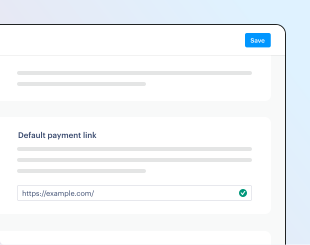
Transactions have a checkout payment link that you can use to open a checkout to collect for payment. Set a default payment link to tell Paddle which page in your app or website that checkout payment links should point to by default.
Your default payment link is also used to open a checkout to let customers update their payment method. It's included automatically in emails sent by Paddle to customers.
You must set your default payment link to start selling with Paddle. You can't create transactions without it — including manually-collected transactions (invoices).
How it works
Every Paddle account has a default payment link. It's used for:
- Unique payment links against transactions that automatically open a Paddle Checkout to collect for payment.
- As a redirect for the payment method update URL against automatically-collected subscriptions to let customers update payment details.
- In emails sent by Paddle to customers to let them update their payment details for automatically-collected subscriptions.
Your default payment link should be a page for an approved website that includes Paddle.js. You don't need to do anything to get Paddle.js to open a checkout, it automatically opens a checkout for the transaction when the query parameter is present.
Transaction payment links
All automatically-collected transactions include a checkout payment link.
Manually-collected transactions don't include a checkout payment link by default, but you can set billing_details.enable_checkout to true when creating or updating to include one. When enabled, this link is automatically included on invoice documents sent by Paddle.
Checkout payment links are returned in transaction responses as checkout.url. They're made up of your default payment link with a _ptxn query parameter appended. The value of the query parameter is the transaction ID. For example:
https://aeroedit.com/pay?_ptxn=txn_01h2b0qpjc0xt8k5aw6nsdec4pIn this example:
| Description | URL component |
|---|---|
| Default payment link | https://aeroedit.com/pay |
| Query parameter key | ?_ptxn= |
| Query parameter value (transaction ID) | txn_01h2b0qpjc0xt8k5aw6nsdec4p |
You can pass any of your other approved websites as checkout.url when creating or updating a transaction to override the default checkout link, if you want to point to another page.
Payment method update links
For compliance, subscription emails from Paddle include a link to let customers update their payment method and cancel their subscription. Links are also returned when working with subscription entities against subscription.management_urls.
The link to update a payment method redirects to your default payment URL to open a checkout to update a payment method.
Before you begin
You'll need to add your website to Paddle > Checkout > Website approval, then wait for approval.
Build your default payment link page
Your default payment link should be a page for an approved website that includes Paddle.js. It might be your checkout page, or you might create a separate page specifically for it.
If your page calls Paddle.Checkout.open() on load with a list of items or a transactionId, this takes priority over the query parameter.
By default, Paddle.js opens an overlay checkout for the passed transaction. You can set default checkout settings by passing them to Paddle.Initialize(). Paddle.js uses default settings when opening a checkout payment link.
This example sets default checkout settings for all checkouts opened on a page. When using a checkout payment link, Paddle.js opens an inline checkout with these settings.
Paddle.Initialize({ token: 'live_7d279f61a3499fed520f7cd8c08', // replace with a client-side token checkout: { settings: { displayMode: "inline", theme: "light", locale: "en", frameTarget: "checkout-container", frameInitialHeight: "450", frameStyle: "width: 100%; min-width: 312px; background-color: transparent; border: none;" } }});This example sets default checkout settings for all checkouts opened on a page. When using a checkout payment link, Paddle.js opens an overlay checkout with these settings.
Paddle.js opens an overlay checkout by default, but this is a good way to pass additional settings like locale and theme.
Paddle.Initialize({ token: 'live_7d279f61a3499fed520f7cd8c08', // replace with a client-side token checkout: { settings: { displayMode: "overlay", theme: "light", locale: "en" } }});Set your default payment link
You can set your default payment link in the Paddle dashboard. You must set a default payment link — even if you only sell by invoice or only sell one-time products.
Your sandbox and live systems are separate. You should set a default payment link for both systems. They don't have to be the same.
- Go to Paddle > Checkout > Checkout settings.
- Enter your website homepage under the Default payment link heading. If you don't have one, enter
https://localhost/. - Click Save when you're done.