Migrations in the dashboard is in early access
This feature is in early access. You can read the docs to learn more, then email us at sellers@paddle.com to join the early access program waitlist. We'll reach out when there's capacity if you meet the program requirements.
After you've built an integration with Paddle Billing, use the dashboard to port subscription data from Paddle Classic to Paddle Billing. You can update records in your database, then turn off your Paddle Classic integration.
This guide walks through how to use the migration screens, and how to handle migrated data.
How it works
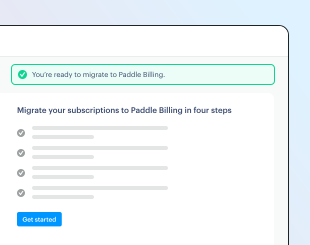
You can use screens in the Paddle dashboard to migrate data from Paddle Classic to Paddle Billing. It's a multistep process, with a final chance to review everything at the end.
You can run as many migrations as you want, choosing how many subscriptions you want to migrate each time.
Product catalog mapping
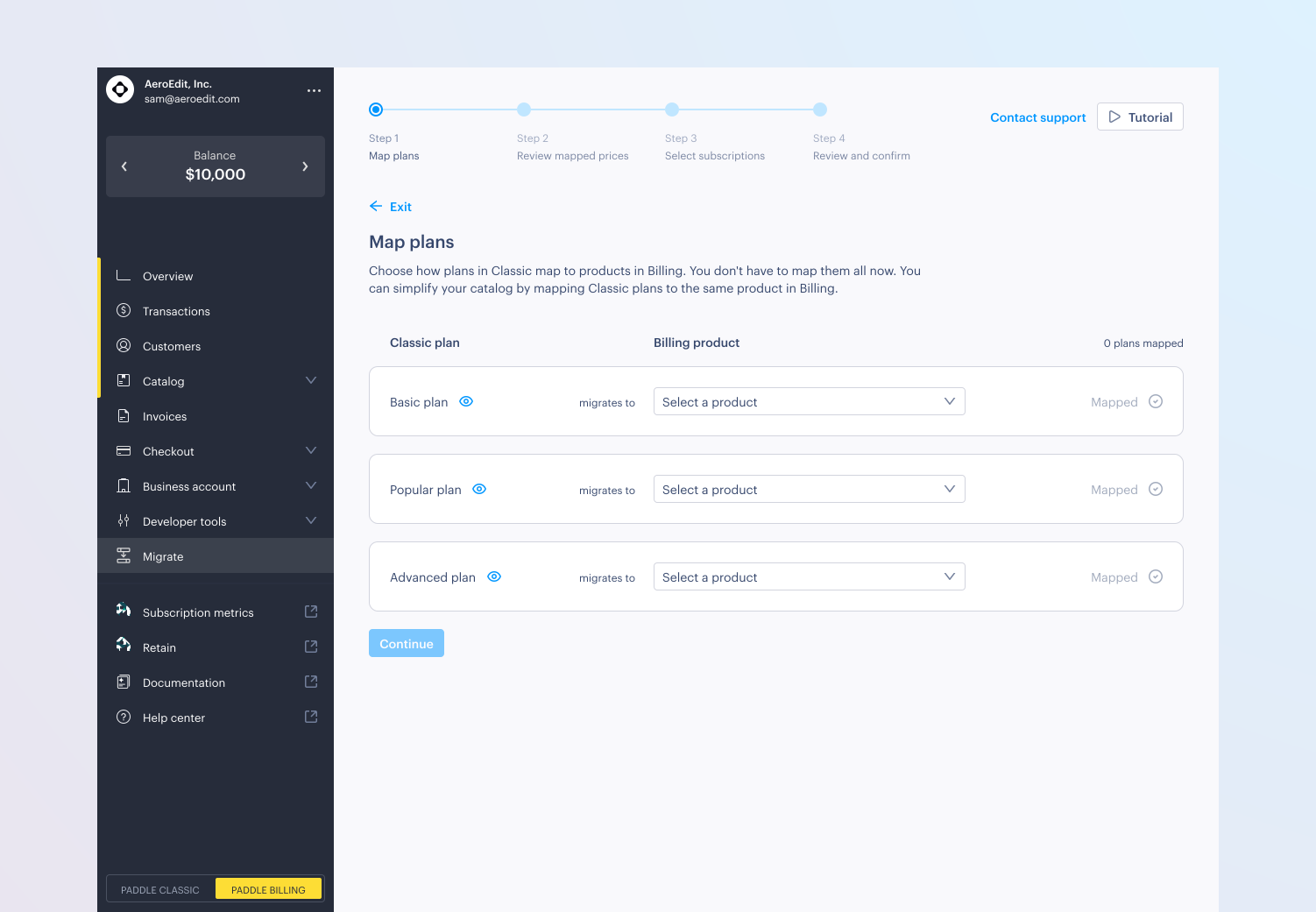
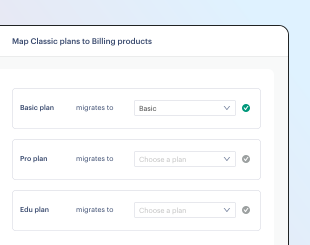
In the first step of migration, you can map plans in Paddle Classic with products in Paddle Billing.
You can map the same product to multiple plans. For example, you might have separate plans in Paddle Classic for monthly and annual pricing, which you could map to the same product in Paddle Billing.
For each plan that you map to a product, Paddle creates prices for that product. You can review these on step two of the migration screen.
Price overrides in Paddle Classic and Paddle Billing can't be mapped one-to-one. Paddle creates a price for each combination of currency, amount, and tax mode used by subscriptions on a plan, including currency override prices and custom prices on individual subscriptions. Subscriptions that pay the same amount share a price.
By default, prices are created as non-catalog prices. This means they're considered specific to the subscriptions that they're used on, and not presented in the dashboard or returned by the API by default. When you review prices, you can choose to add them to your product catalog instead.
Subscription selection
After you've mapped products and prices, you can choose which subscriptions you want to migrate.
We recommend choosing a small number of subscriptions for your first migration, so you can familiarize yourself with the process and check that your new Paddle Billing integration flows work correctly.
You can run as many migrations as you want, so you can go plan-by-plan, migrate a number at a time, or migrate all.
You can migrate active, paused, and past due subscriptions. Past due subscriptions are imported as past due if the billing period that the customer owes for hasn't ended yet, or as paused if it has. To learn more, see What changes when subscriptions migrate.
Only one migration can run at a time. If a subscription fails to migrate, it's not canceled in Paddle Classic, and you can select it again in a new migration.
During migration
During a migration, Paddle creates new records in Paddle Billing and cancels the subscription in Paddle Classic. This is how the process works:
- Prices imported.
New prices are created in Paddle Billing for any mapped products. - Customer data imported.
A customer and an address entity are created in Paddle Billing for each subscription. Where an existing customer exists, Paddle creates a new address for that customer instead. - Business data imported Optional
If a customer has a tax or VAT number, a business entity is created for the customer in Paddle Billing. - Subscriptions imported.
A subscription entity is created in Paddle Billing for each subscription. It's linked to the customer, address, and business created earlier, and the products and prices mapped initially. - Subscription canceled in Paddle Classic.
The subscription is canceled silently in Paddle Classic, with no emails to the customer. If there's a problem importing a subscription to Paddle Billing, it's not canceled in Paddle Classic.
Don't change subscriptions in Paddle Classic while a migration is running. If a subscription changes after a migration starts, including when it renews, Paddle doesn't migrate it. You can select it again in a new migration.
Post-migration
You can track the status of a migration in the dashboard. Paddle emails you when a migration is completed.
As part of the migration process, you need to create or update records in your database for the subscriptions you ported over. You can either:
- Use webhooks Recommended
Listen forcustomer.imported,subscription.imported, and other imported webhooks, then create records in your database. - Create a database migration script.
Export a list of migrated subscriptions from the dashboard, then use this to write a script to create records in your database.
As part of migration, imported events occur in place of created events. For example, customer.imported occurs in place of customer.created. For past due subscriptions, Paddle also creates a past due transaction, so transaction.created and transaction.past_due occur too.
In most cases, we recommend using webhooks because they contain all the information you need. You might like to create a database migration script if you're importing a large number of subscriptions that might overwhelm your webhook endpoint.
If you're using a migration script, you may need to make additional calls to the Paddle API to fetch the data you need.
What changes when subscriptions migrate
Paddle Billing models subscriptions differently from Paddle Classic, so some data changes shape when it's migrated. Customers keep paying for the same items, but discounts and charges may be presented differently, and some Paddle Classic data isn't carried over.
Discounts and modifiers
Paddle Billing doesn't have modifiers, and discounts work differently from Paddle Classic coupons. Paddle converts them like this:
| In Paddle Classic | In Paddle Billing | What customers see |
|---|---|---|
| Recurring coupon | A discount with the same type, amount, currency, and recurrence, applied to the subscription. | The same discount on each renewal. |
| One-off coupon | Not migrated. One-off coupons apply to a single payment, so they've already been used. | No change. |
| Negative modifiers | Combined into one recurring flat discount, named using the modifier descriptions. One-off negative modifiers apply to the next renewal only. | One discount instead of several, for the same total. |
| Recurring positive modifiers | A separate item on the subscription for each modifier, with its own non-catalog price named after the modifier. | Each modifier as its own line item, for the same total. |
| Unpaid one-off positive modifiers | A one-time charge collected with the next renewal. | An extra line item on the next renewal. |
| Percentage coupon on a subscription that has positive modifiers | A discount that applies to the plan price only, matching how Paddle Classic applies coupons. | No change. |
Discounts created as part of a migration are non-catalog discounts, with a mode of custom. They don't have a code, so they can't be used at checkout, and coupon usage limits and expiry dates aren't carried over. To offer the same discount to new customers, create a new discount in Paddle Billing.
If a customer owes an outstanding balance on their Paddle Classic subscription, for example from a mid-cycle upgrade, Paddle adds it to the one-time charge for the next renewal. It's created against a non-catalog product called "Subscription Update." If a customer has a credit balance in Paddle Classic, Paddle adds it to their credit balance in Paddle Billing.
Subscription status and billing dates
Subscriptions keep their billing dates, and renew at the same time of day as they did in Paddle Classic.
- Active subscriptions are imported as active. If a pause is scheduled in Paddle Classic, the subscription is imported with a scheduled change to pause at the end of the current billing period.
- Paused subscriptions are imported as paused. When you resume a migrated paused subscription, Paddle starts a new billing period on the date you resume it and bills for it immediately.
- Past due subscriptions in dunning are imported as past due, and Paddle Billing retries the payment. The retry window ends before the end of the billing period that the customer owes for, so there may be fewer retries than in a new dunning cycle.
- Past due subscriptions where the billing period that's owed has ended are imported as paused. The unpaid renewal isn't carried over, and the customer isn't billed until you resume the subscription.
Payments, currency, and tax
Saved payment methods are carried over, so customers don't need to enter their payment details again.
Subscriptions are imported in the currency that customers are charged in. Where a Paddle Classic plan is priced in a different currency, active subscriptions keep the exchange rate from their last payment, and paused subscriptions use the exchange rate on the day they're migrated.
From the first renewal, Paddle Billing calculates tax using the customer, address, and business details on the subscription. Where tax rates differ from Paddle Classic, the total for subscriptions with tax-exclusive prices may change. For subscriptions with tax-inclusive prices, the total stays the same and the tax portion changes.
Customer data and custom data
Paddle matches customers using their email address. If a customer with the same email address already exists in Paddle Billing, Paddle adds the subscription to that customer rather than creating a new one, and updates its name and import_meta to match Paddle Classic. Paddle creates a new address for each migrated subscription, and a new business where the subscription has business details.
Marketing consent isn't carried over.
Custom data for a subscription holds the Paddle Classic passthrough and any checkout custom data as strings, under classic_passthrough and checkout_custom_data. If you passed JSON as passthrough in Paddle Classic, parse it from classic_passthrough:
{ "custom_data": { "classic_passthrough": "{\"user_id\":\"usr_123\"}", "checkout_custom_data": "{\"source\":\"pricing_page\"}" }}Customer experience and history
Paddle cancels the subscription in Paddle Classic without sending emails to customers or a subscription_cancelled alert to you.
Paddle Classic update_url and cancel_url links stop working once a subscription is migrated. Use management_urls on the subscription, or generate links to the customer portal, to let customers manage their subscriptions in Paddle Billing.
Customers don't get an email when their subscription is migrated. For active subscriptions, the first email they get from Paddle Billing is for their next renewal. Depending on their country and billing period, they may get a reminder before it.
Past due subscriptions continue dunning in Paddle Billing, so customers may get dunning emails asking them to update their payment details until the payment is collected.
Payment history from Paddle Classic isn't migrated. For active subscriptions, Paddle creates a transaction for the current billing period with an origin of subscription_import. It's not returned when you list transactions unless you filter by its ID.
Before you begin
Build an integration with Paddle Billing
Paddle Billing is built on an entirely new API, with new webhooks, Paddle.js library, and SDKs.
Before you can port your subscriptions from Paddle Classic to Paddle Billing, you'll need to build an integration with Paddle Billing so that you're ready to run subscriptions through Paddle Billing rather than Paddle Classic.
To learn more, see Reintegration checklist.
Complete a transaction and renew a subscription
You'll need to have at least one completed transaction and at least one subscription that has renewed on Paddle Billing. This is how we verify that your integration is ready to handle renewals for migrated subscriptions.
Make sure you've had one new customer signup through your Paddle Billing integration, or launch a checkout and take a payment through it yourself to verify that your Paddle Billing integration works correctly. You'll also need to wait for at least one subscription to renew before starting a migration.
Subscribe to imported events
We recommend using webhooks to handle fulfillment and provisioning for subscription lifecycle events. Build a webhook handler function and set up a notification destination in Paddle.
If you're using webhooks to handle your post-migration workflow, subscribe to customer.imported and subscription.imported events.
To learn more, see Create or update notification destinations and Handle webhook delivery.
You can use webhook simulator to check that your webhook endpoint and fulfillment workflows are working correctly.
Prepare your database
Create or update records in your database for new subscriptions in Paddle Billing.
To avoid data contamination, we recommend creating new tables in your database for subscription data rather than enriching existing records.
Customers can have more than one subscription in Paddle Billing, so we recommend creating a table for customer data and a separate table for subscription data, then relating them using the customer ID.
As part of the migration, customer.imported occurs in Paddle Billing. You should store:
| Description | Field name | Reason to store |
|---|---|---|
| Customer ID | customer.id | Used to identify a customer and relate to record in the subscription table. |
| Email address | customer.email | Used to identify a customer. |
| Classic reference | customer.import_meta.external_id | Used to match this customer to a Paddle Classic user record. |
Paddle matches customers using their email address, so Paddle Classic users who share an email address become one customer in Paddle Billing. To match records reliably, use subscription.import_meta.external_id.
As part of the migration, subscription.imported occurs in Paddle Billing. You should store:
| Description | Field name | Reason to store |
|---|---|---|
| Customer ID | subscription.customer_id | Used to relate this record with a record in the customer table. |
| Subscription ID | subscription.id | Used to identify this subscription and work with this subscription using the API. |
| Subscription status | subscription.status | Used to limit or stop access when paused or canceled, or determine if a subscription is past due or trialing. |
| Subscription items | subscription.items[].price.id, subscription.items[].quantity | Used to change items on a subscription as part of an upgrade or downgrade workflow. |
| Subscription products | subscription.items[].price.product_id | Used to determine which features in your app a customer should have access to. |
| Collection mode | subscription.collection_mode | Used to determine whether a subscription bills automatically or whether Paddle sends an invoice for charges that customers must pay manually. |
| Scheduled change | subscription.scheduled_change | Used to determine whether a subscription is scheduled to pause or cancel. You can't change items on a subscription when there's a pending scheduled change. |
| Classic reference | subscription.import_meta.external_id | Used to match this subscription to a Paddle Classic subscription record. |
Migrate subscription data
Get started
- Switch to Paddle Billing in the Paddle dashboard.
- Go to Paddle > Migrate.
- Click Get started.
You'll need to have at least one completed transaction and at least one subscription that has renewed on Paddle Billing to be able to start a migration.
Map products and prices
- Use the drop-down to map plans in Classic to products in Billing. Paddle creates a new price for each plan against the product you select here.
- Click Continue, then review prices.
- Click Price details next to any price to update the name or description of a price. You can change other details later.
- Click Continue.
Select subscriptions
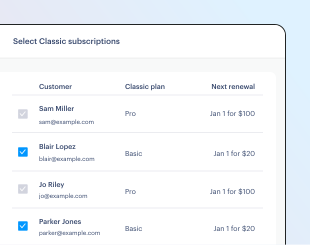
- Use the checkboxes to select subscriptions that you want to migrate. You can search, sort, and filter using the options at the top.
- Click Continue.
We recommend selecting a small number of subscriptions for your first migration, so you can check your new integration works.
Review and start
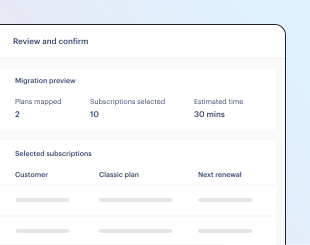
- Review the products and subscriptions you're migrating, then click Start migration.
- Complete the final check by clicking Start migration.
Handle migrated subscriptions
If you built a post-migration workflow using customer.imported and subscription.imported events, you should check that:
- You received webhooks for imported events. Paddle automatically queues events that failed for retry, using an exponential backoff schedule. You can view logs in the Paddle dashboard or using the API.
- You processed webhooks successfully, and records are created in your database. You can export a list of subscriptions from Paddle > Migrate and check against your records.
- You're running subscriptions in Paddle Billing through your Paddle Billing integration.
When all your subscriptions are ported to Paddle Billing, you can safely remove your Paddle Classic integration.
If you're using a database migration script to create and update records in your database, you should:
- Switch to Paddle Billing in the Paddle dashboard, then export a list of subscriptions from Paddle > Migrate.
- Write a database migration script to create or update records in your database.
- Check that you're running subscriptions in Paddle Billing through your Paddle Billing integration.
When all your subscriptions are ported to Paddle Billing, you can safely remove your Paddle Classic integration.
Events
price.imported | Occurs during a migration when a price is created for a Paddle Classic plan. |
customer.imported | Occurs during a migration when a customer is created for a subscription. |
address.imported | Occurs during a migration when an address is created for a customer against a subscription. |
business.imported | Occurs during a migration when a business is created for a customer against a subscription. |
discount.imported | Occurs during a migration when a discount is created for a Paddle Classic coupon. |
subscription.imported | Occurs during a migration when a subscription is ported from Paddle Classic to Paddle Billing. |