Paddle.js is a JavaScript library that you include in your frontend to open checkouts, render localized prices, and integrate with Paddle Retain.
This quickstart walks you through including Paddle.js, initializing it with a client-side token, and opening an overlay checkout. It takes about five minutes.
Before you begin
You need a Paddle account. You can sign up for free:
- Sandbox account — for testing. No real money is involved.
- Live account — for production use. Requires approval before you can process real transactions.
We recommend starting in the sandbox environment.
You'll also need:
- At least one product and price in your Paddle account. Note the price ID, starting with
pri_. - A domain approved in Paddle > Checkout > Website approval, so you can test from a local file. On sandbox accounts, you can use
localhostas your domain.
Get a client-side token
Client-side tokens authenticate Paddle.js with your Paddle account. They're safe to expose in frontend code.
- Go to Paddle > Developer tools > Authentication.
- Click the Client-side tokens tab.
- Click New client-side token.
- Enter a name, then click Save.
- Click the button next to the token, then Copy.
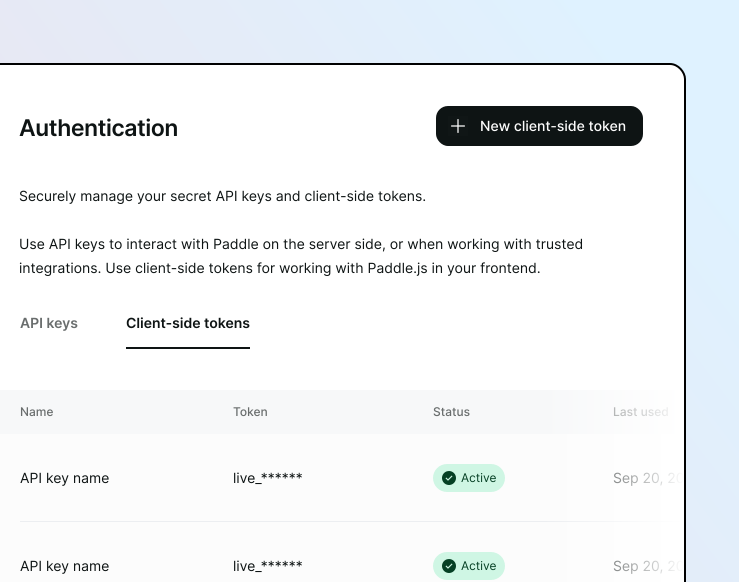
Sandbox tokens start with test_. Live tokens start with live_.
Include Paddle.js
You can include Paddle.js using a script tag or an npm package.
Create an HTML file and load Paddle.js from the Paddle CDN in the <head>:
<script src="https://cdn.paddle.com/paddle/v2/paddle.js"></script>Always load Paddle.js directly from https://cdn.paddle.com/. This makes sure that you're running with the latest security and feature updates from Paddle.
Install @paddle/paddle-js using your package manager:
pnpm add @paddle/paddle-jsyarn add @paddle/paddle-jsnpm install @paddle/paddle-jsThen import it where you'll initialize Paddle.js:
import { initializePaddle } from "@paddle/paddle-js";The package includes TypeScript definitions for all Paddle.js methods.
Initialize Paddle.js
Initialize Paddle.js with your client-side token. For sandbox tokens, also set the environment to sandbox.
Call Paddle.Initialize() inside a script tag:
<script type="text/javascript"> Paddle.Environment.set("sandbox"); Paddle.Initialize({ token: "test_abc123def456ghi789jkl0mn", // replace with your client-side token });</script>Skip Paddle.Environment.set() if you're using a live token.
Call initializePaddle() and keep the returned paddle instance. You'll use it to open checkouts:
import { initializePaddle, type Paddle } from "@paddle/paddle-js";
let paddle: Paddle | undefined;
initializePaddle({  environment: "sandbox",  token: "test_abc123def456ghi789jkl0mn", // replace with your client-side token}).then((p) => {  paddle = p;});
Omit environment if you're using a live token.
Open a checkout
Open a checkout by calling Paddle.Checkout.open() with the price ID you noted earlier.
Add a button to your HTML that calls Paddle.Checkout.open():
<button onclick="openCheckout()">Buy now</button>
<script type="text/javascript">  function openCheckout() {    Paddle.Checkout.open({      items: [        { priceId: "pri_01h1vjes1y163xfj1rh1tkfb65", quantity: 1 },      ],    });  }</script>
Wire up a button or other event handler to call Checkout.open() on the paddle instance you initialized:
function openCheckout() { paddle?.Checkout.open({ items: [ { priceId: "pri_01h1vjes1y163xfj1rh1tkfb65", quantity: 1 }, ], });}Load your page in a browser and click the button. An overlay checkout slides in.
Take a test payment
Fill in the checkout with these test card details:
| Field | Value |
|---|---|
| Any email address | |
| Country | Any country |
| Card number | 4242 4242 4242 4242 |
| Name on card | Any name |
| Expiration date | Any future date |
| Security code | 100 |
When you complete checkout, your test payment shows up in Paddle > Transactions in the sandbox dashboard.
Complete example
Drop your client-side token and price ID in and run it.
Save this as checkout.html, run a local dev server, and open it in a browser:
<!DOCTYPE html><html>  <head>    <script src="https://cdn.paddle.com/paddle/v2/paddle.js"></script>    <script type="text/javascript">      Paddle.Environment.set("sandbox");      Paddle.Initialize({        token: "test_abc123def456ghi789jkl0mn",      });
      function openCheckout() {        Paddle.Checkout.open({          items: [            { priceId: "pri_01h1vjes1y163xfj1rh1tkfb65", quantity: 1 },          ],        });      }    </script>  </head>  <body>    <button onclick="openCheckout()">Buy now</button>  </body></html>
Import and initialize Paddle.js, then wire up a button to open a checkout:
import { initializePaddle, type Paddle } from "@paddle/paddle-js";
let paddle: Paddle | undefined;
initializePaddle({  environment: "sandbox",  token: "test_abc123def456ghi789jkl0mn",}).then((p) => {  paddle = p;});
function openCheckout() {  paddle?.Checkout.open({    items: [      { priceId: "pri_01h1vjes1y163xfj1rh1tkfb65", quantity: 1 },    ],  });}
document.querySelector("#buy")?.addEventListener("click", openCheckout);
Add a matching button to your page:
<button id="buy">Buy now</button>Next steps
You've opened your first Paddle Checkout. These pages cover what to build next:
A deeper walkthrough that covers prefilling customer details, handling events, and styling.
Embed the checkout directly in your page instead of opening it as an overlay.
Customize the theme, locale, and behavior of your checkouts using default settings.
Browse the full method reference for opening, updating, and closing checkouts.
Listen for events emitted by Paddle.js to react to customer actions and payment status.
Use Paddle.PricePreview() to render localized prices on your marketing site.