Paddle Retain combines world-class subscription expertise with algorithms that use billions of datapoints to automatically reduce churn. Paddle Billing is fully integrated with Retain, meaning it automatically handles dunning and retention for you.
Set up in minutes with Paddle Billing, or integrate with other billing platforms.
Connect to your billing platform
Paddle Retain works with live data for your billing platform. This means you can't integrate or test with sandbox accounts.
If you use Paddle Billing, you can set up Paddle Retain to take care of payment recovery for you.
Paddle Billing automatically integrates with Paddle Retain without additional configuration required.
Any team member with the admin, technical, or subscription KPIs roles in Paddle Billing can access Retain.
Once you've completed setup, you can configure advanced payment recovery features, cancellation flows, and term optimization features.
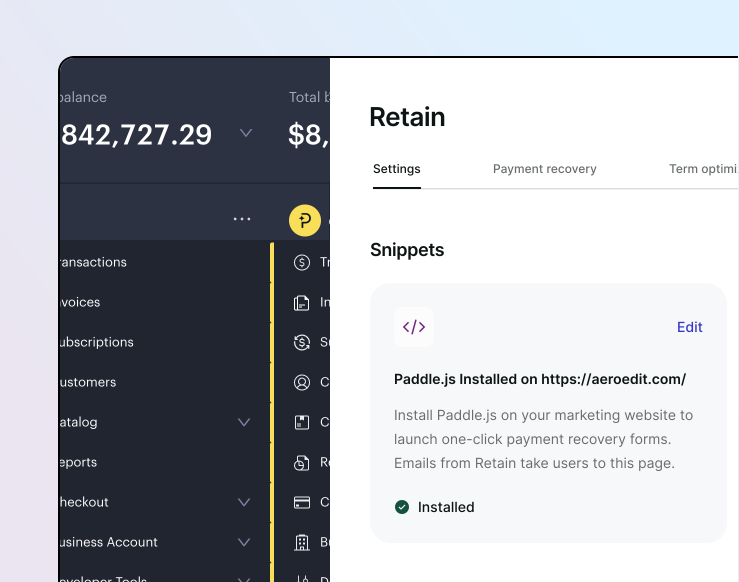
Retain integrates with Paddle.js, so you don't need to include any additional scripts if you use Paddle Billing.
For US customers
- Set up Paddle Retain, if you haven't already.
- As part of the setup process, choose Connect to Braintree. Alternatively, go to ProfitWell > Settings > Integrations and click Braintree.
- Click Settings, then click Allow access.
- Follow the instructions to log in to your Braintree account and authorize ProfitWell to read your data. You must be an admin user in Braintree to do this.
- That's it! Wait for your data to ingest. This may take a few hours.
For non-US customers
The technology that lets us integrate with Braintree by signing in isn't available outside the  United States
Set up Paddle Retain, if you haven't already.
Open Braintree, then go to Settings > Team, then click New user.
Create a new role called "ProfitWell Read Only" with rights to:
Transactions Download Transactions with Masked Payment Data Customer management Download Vault Records with Masked Payment Data Recurring billing Download Subscription Records Recurring billing View Subscription Plans Click Save when you're done.
Still in Braintree, go to Settings > Manage users, then click Add single user.
Create a new user with API access, the "ProfitWell Read Only" role you just created, and access to your merchant account. Click Save when you're done.
Log out of Braintree, then log in again using the account you just created.
Go to Settings > API, then click Generate new API key.
Email sellers@paddle.com with the public key, private key, and merchant ID for the API you just created. We'll take care of the rest.
- Set up Paddle Retain, if you haven't already.
- As part of the setup process, choose Connect to Chargebee. Alternatively, go to ProfitWell > Settings > Integrations and click Chargebee.
- Click Settings to open the settings screen, then paste your Chargebee site name. This is the first part of your Chargebee URL. For example, if you log in to Chargebee at
yourproduct.chargebee.comthenyourproductis your site name. - Open Chargebee in a new tab, go to Settings > Configure Chargebee > API Keys and Webhooks, then click on the API keys tab. Create a new read only API key with all access, then copy your key.
- Hop back over to ProfitWell, then paste your read only API key into your Chargebee settings screen.
- Click Save and you're done!
- Wait for your data to ingest. This may take a few hours.
- Set up Paddle Retain, if you haven't already.
- As part of the setup process, choose Connect to Chargify. Alternatively, go to ProfitWell > Settings > Integrations and click Chargify.
- Click Settings to open the settings screen, then paste your Chargify site name. This is the first part of your Chargify URL. For example, if you log in to Chargify at
yourproduct.chargify.comthenyourproductis your site name. - Open Chargify in a new tab, go to Config > Integrations > API Keys. Create a new API key and copy it.
- Hop back over to ProfitWell, then paste your API key into your Chargify settings screen.
- Click Save and you're done!
- Wait for your data to ingest. This may take a few hours.
- Set up Paddle Retain, if you haven't already.
- As part of the setup process, choose Connect to ReCharge. Alternatively, go to ProfitWell > Settings > Integrations and click ReCharge.
- Open ReCharge in a new tab, go to Apps > API tokens. Create a new API key with write access for all the options, then copy it.
- Hop back over to ProfitWell, click Settings on the ReCharge screen, then paste your API key.
- Click Save and you're done!
- Wait for your data to ingest. This may take a few hours.
- Set up Paddle Retain, if you haven't already.
- As part of the setup process, choose Connect to Recurly. Alternatively, go to ProfitWell > Settings > Integrations and click Recurly.
- Click Settings to open the settings screen, then paste your Recurly site name. This is the first part of your Recurly URL. For example, if you log in to Recurly at
yourproduct.recurly.comthenyourproductis your site name. - Open Recurly in a new tab, go to Developers > API Credentials. Click the Add private API key button, then create an API key with full access and copy it.
- Hop back over to ProfitWell, then paste your API key into your Recurly settings screen.
- Click Save and you're done!
- Wait for your data to ingest. This may take a few hours.
- Set up Paddle Retain, if you haven't already.
- As part of the setup process, choose Connect to Stripe. Alternatively, go to ProfitWell > Settings > Integrations and click Stripe.
- Click Settings, then click Allow access.
- Follow the instructions to log in to your Stripe account and authorize ProfitWell to read your data. You must be an admin user in Stripe to do this.
- That's it! Wait for your data to ingest. This may take a few hours.
- Set up Paddle Retain, if you haven't already.
- Open Zuora, go to Administration > Manage user roles, then click Add new role
- Create a new role called "API user" with API write access only. Leave the UI access box unchecked. Click Save when you're done.
- Still in Zuora, go to Administration > Manage users, then click Add single user.
- Create a new user with a work email and login name of
product+company_name@profitwell.com, wherecompany_nameis your company name with spaces or symbols replaced with an underscore. Set the role to the new API user role you just created, then click Save when you're done. - Email sellers@paddle.com with your API user account name in Zuora. We'll take care of the rest.
Complete setup steps
Go to Retain
You can access the setup flow for Retain in the Paddle dashboard.
- Go to Paddle > Retain.
- Click Get started
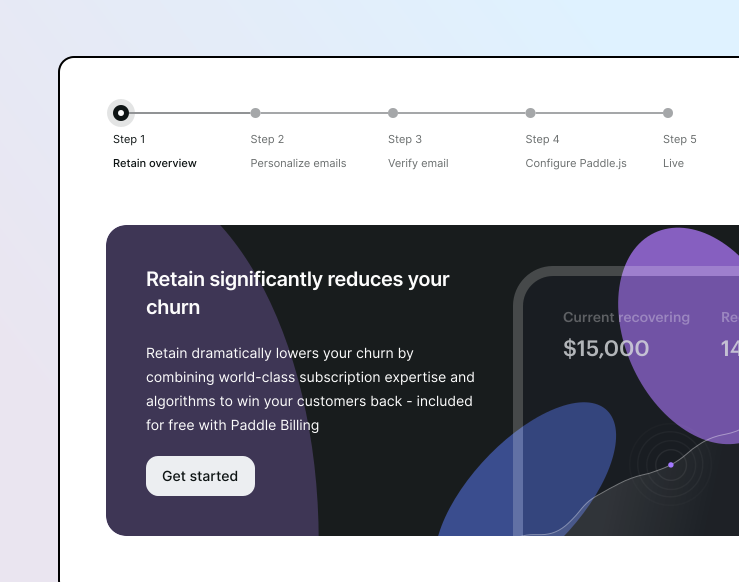
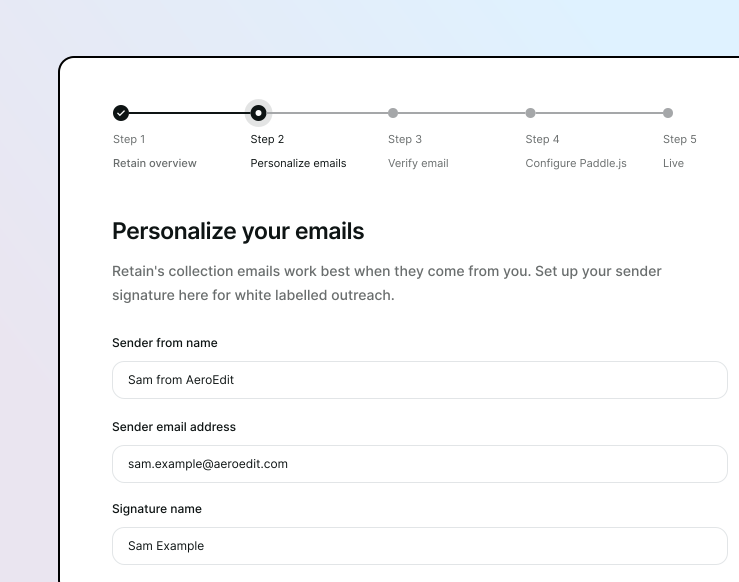
Set up emails
Emails sent from Paddle Retain are designed to look like they come from you or someone on your team.
- Enter the name of the sender and the email to send from.
- Enter a name and title for the signature.
- Click Continue
Verify your Retain emails
Retain uses Postmark to securely send emails to customers on your behalf. Verify your email sender by following the link provided in the email.
- Open your inbox and look for the email from Postmark.
- Click Confirm Sender Signature in the email to verify.
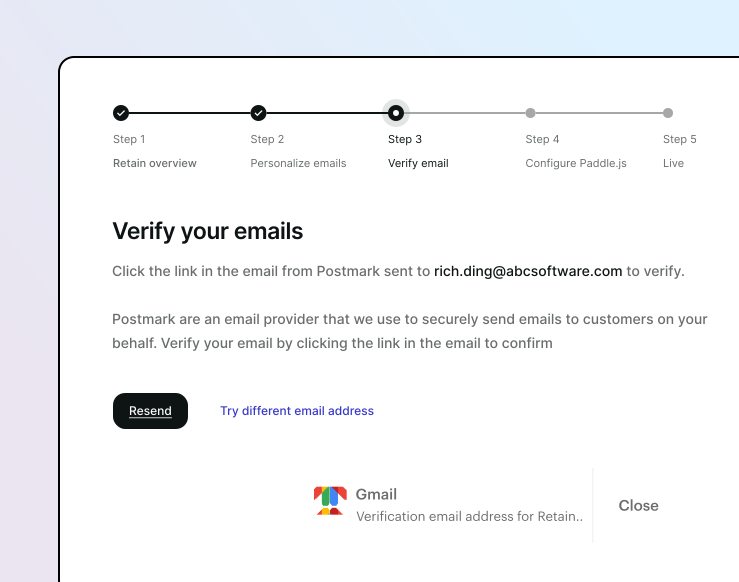
If you have issues with verification, you can Resend the email or Use a different email address.
Install JavaScript snippets
The Retain snippets power in-app payment recovery notifications and engagement tracking.
- Follow the instructions to install Paddle.js.
- Not technical? Email the instructions to your engineering team under Need help from your engineering team?
- Under Check Paddle.js installation, enter the URL of the page where you installed Paddle.js and click Check
- You're done. Click Continue to Retain to see all settings.
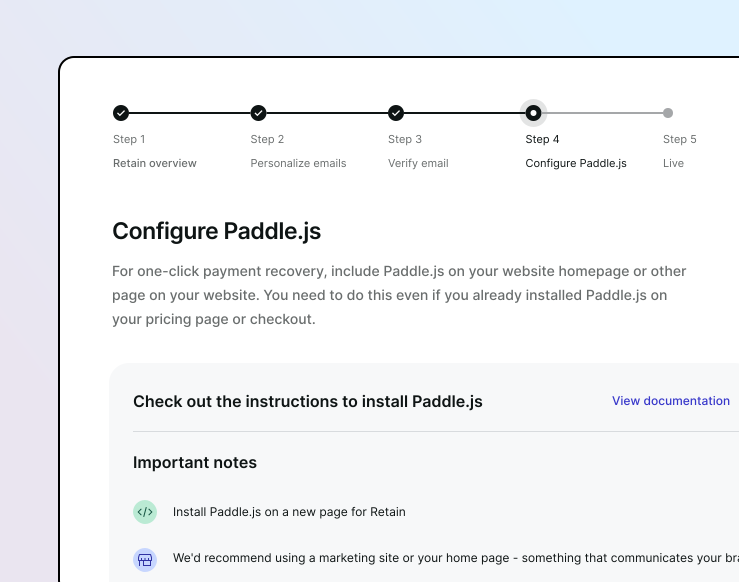
If you have issues when checking, make sure the page is publicly accessible and doesn't have any form of redirect. We recommend a homepage or landing page to start.
Configure optional settings
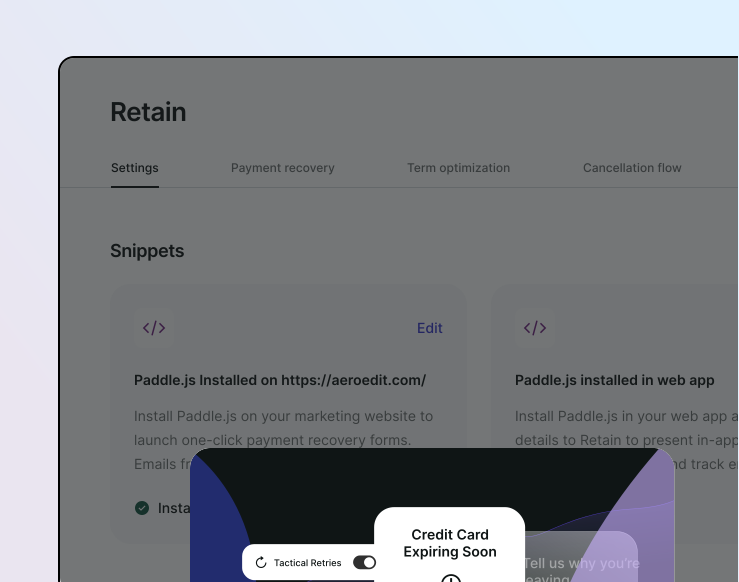
- Make sure emails from Retain reach customers by clicking Verify on DKIM and Return-Path DNS records to set up email authentication methods.
- Upload a logo for emails and notifications by clicking Edit on Custom logo upload.
- Turn on localized outreach messages for multiple regions by toggling on Localized outreach.
Configure Paddle Retain interventions
Now you've finished setup, configure and turn on:
Fully automated dunning, powered by algorithms that use billions of datapoints to reduce churn.
Personalized offboarding workflows designed to deflect cancellations and gather valuable product insights.
Seamless one-click upgrades for customers identified as ready to move to a longer-term plan.