With recent developments in legislation around the App Store, you can link users in the  United States
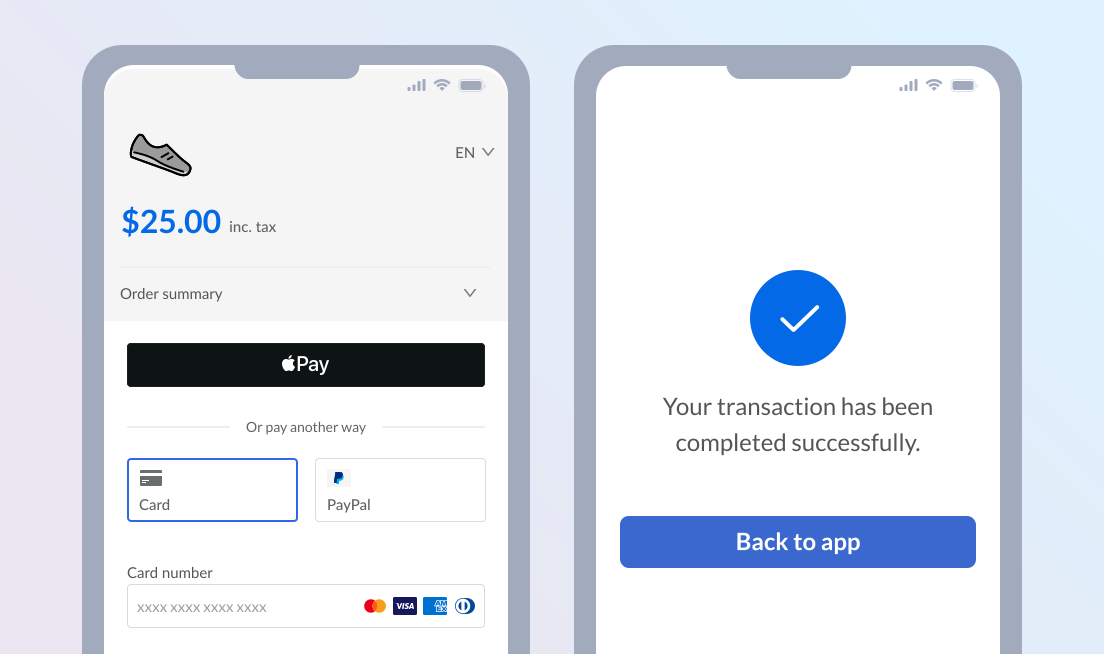
You can build your own Paddle Checkout implementation to quickly and securely collect for payment for digital products outside your app. Customers tap a button in your app to open your checkout implementation, then they're redirected to your app when they complete their purchase.
Prefer not to build your own checkout?
Instead of building your own checkout implementation, you can use hosted checkouts to let users securely make purchases outside your app.
What are we building?
In this tutorial, we'll use Paddle.js and the Paddle SDKs to create a custom checkout implementation as part of an external purchase flow for in-app purchases in iOS apps.
We'll walk through handling fulfillment using the RevenueCat x Paddle integration or webhooks.
What's not covered
This tutorial doesn't cover:
- Handling authentication
We assume you already have a way to identify your users, like Firebase or Sign in with Apple. - Native in-app purchases
We'll launch Paddle Checkout in Safari then redirect users back to your app. Like the App Store, Paddle Checkout supports Apple Pay with no additional setup, plus other popular payment options. - Subscription lifecycle management
You can use Paddle to handle all parts of the subscription lifecycle, including updating payment methods and canceling subscriptions using the prebuilt customer portal. We cover that elsewhere in our docs.
Before you begin
Sign up for Paddle
You'll need a Paddle account to get started. You can sign up for two kinds of account:
- Sandbox — for testing and evaluation
- Live — for selling to customers
For this tutorial, we recommend signing up for a sandbox account. You can transition to a live account later when you've built your integration and you're ready to start selling.
If you sign up for a live account, you'll need to complete account verification. This is where we ask for some information from you to make sure that we can work together.
Prep your iOS development environment
As part of our tutorial, we're going to update our app to include a link to the page on your website where you set up Paddle.js. You'll need:
- Some knowledge of iOS development, access to your iOS project, and Xcode on macOS.
- A correctly configured URL scheme so you can redirect users back to your app.
You don't need to make changes to your iOS app to set up Paddle.js on your website, so you can come back to this later if you're working with a separate iOS developer.
Overview
Build your own Paddle Checkout implementation to link out for in-app purchases in six steps:
- Map your product catalog
Create products and prices in Paddle that match your in-app purchase options. - Add Paddle.js to your website
Include Paddle.js on a page on your website, then handle the post-purchase redirect back to your app. - Create a transaction in Paddle
Build logic in your backend to create a customer and a transaction in Paddle, ready for checkout. - Add a checkout button to your app
Create a button that creates a transaction in Paddle and opens your checkout. - Handle fulfillment and provisioning using webhooks
Use RevenueCat or process webhooks to fulfill purchases after a customer completes a checkout. - Take a test payment
Make a test purchase to make sure your purchase flow works correctly.
Map your product catalog
Before we implement Paddle Checkout, we need to set up our product catalog in Paddle to match the in-app purchases offered in-app.
Model your pricing
A complete product in Paddle is made up of two parts:
- A product entity that describes the item, like its name, description, and an image.
- At least one related price entity that describes how much and how often a product is billed.
You can create as many prices for a product as you want to describe all the ways they're billed.
In this example, we'll create a single product and single price for a one-time item called Lifetime Access.
Create products and prices
You can create products and prices using the Paddle dashboard or the API.
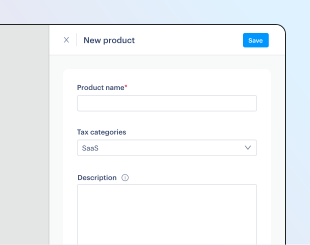
- Go to Paddle > Catalog > Products.
- Click New product
- Enter details for your new product, then click Save when you're done.
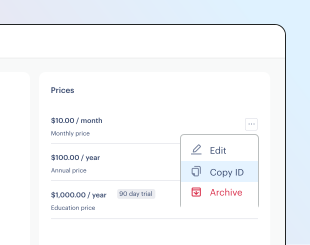
- Under the Prices section on the page for your product, click New price
- Enter details for your new price. Set the type to One-time to create a one-time price.
- Click Save when you're done.
- Click the button next to a price in the list, then choose Copy price ID from the menu. Keep this for later.
Add Paddle.js to your website
Paddle.js is a lightweight JavaScript library that lets you build rich, integrated billing experiences using Paddle. We can use Paddle.js to securely open a checkout, capture payment information, and launch our success workflow.
When you add Paddle.js to a page, you can redirect to that page and append a _ptxn query parameter with the value of a transaction ID in Paddle to launch a checkout automatically.
You can create a new page, or add to an existing one like your homepage.
Include and initialize Paddle.js
You can install and import Paddle.js using a JavaScript package manager.
Install Paddle.js using npm, yarn, or pnpm.
pnpm add @paddle/paddle-jsyarn add @paddle/paddle-jsnpm install @paddle/paddle-jsImport Paddle.js, then initialize by calling the initializePaddle() function with a configuration object.
We'll get a client-side token in the next step.
import { initializePaddle } from '@paddle/paddle-js';
const paddle = await initializePaddle({  token: 'CLIENT_SIDE_TOKEN'});
You can manually load the Paddle.js script on your website using a script tag.
Copy and paste this in the <head> section of the page where you want to launch Paddle Checkout.
<script src="https://cdn.paddle.com/paddle/v2/paddle.js"></script><script type="text/javascript"> Paddle.Initialize({ token: "CLIENT_SIDE_TOKEN" });</script>We'll get a client-side token in the next step.
Get a client-side token
Client-side tokens are for authenticating with Paddle in your frontend. We need one to securely open Paddle Checkout.
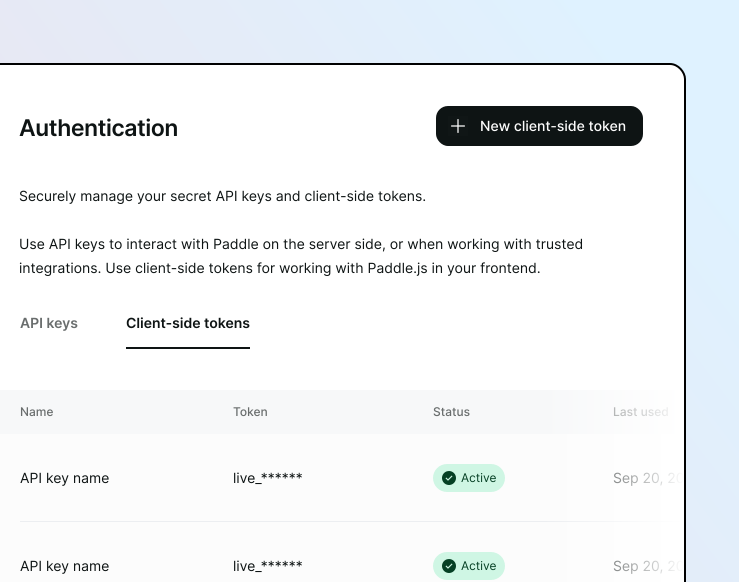
- Go to Paddle > Developer tools > Authentication.
- Click the Client-side tokens tab, then click New client-side token
- Give your client-side token a name and description, then click Save
- From the list of client-side tokens, click the button next to the client-side token you just created, then choose Copy token from the menu.
- Paste your token as
CLIENT_SIDE_TOKENin the code you copied.
Build a success workflow
After users complete a purchase successfully, we need to redirect users back to our app.
To do this, we can use an event callback function. Paddle.js emits events throughout the checkout process when key things happen. An event callback function is some code that we run when a specific event occurs.
In our case, when Paddle.js emits a checkout.completed event, we're going to redirect to a screen in our app.
Import Paddle.js events, then update your Paddle configuration object to include an eventCallback:
import { initializePaddle } from '@paddle/paddle-js';import { CheckoutEventNames, PaddleEventData } from '@paddle/paddle-js';
const paddle = await initializePaddle({  token: 'CLIENT_SIDE_TOKEN',  eventCallback: (event: PaddleEventData) => {    if (event.name === CheckoutEventNames.CHECKOUT_COMPLETED) {
      setTimeout(() => {        window.location.href = `myapp://example-redirect?transactionId=${event.data?.id}`;      }, 3000);    }  }});
Replace myapp://example-redirect with a custom URL scheme or universal link in your iOS app, but keep the ?transactionId=${event.data?.id} part. This is important as it gives us reference for the checkout in our app.
Update the JavaScript snippet in the <head> section of the page to include an eventCallback function:
<script src="https://cdn.paddle.com/paddle/v2/paddle.js"></script><script type="text/javascript"> Paddle.Initialize({ token: "CLIENT_SIDE_TOKEN", eventCallback: function(event) { if (event.name === 'checkout.completed') { setTimeout(function() { let transactionId = event.data && event.data.id ? event.data.id : ''; window.location.href = 'myapp://example-redirect?transactionId=' + transactionId; }, 3000); } } });</script>Replace myapp://example-redirect with a custom URL scheme or universal link in your iOS app, but keep the ?transactionId= part. This is important as it gives us reference for the checkout in our app.
When you're done, deploy your page to your website.
For an optimized Apple Pay experience on mobile, pass variant: 'express' in your checkout settings to open an express checkout. This must be combined with displayMode: 'inline' and requires domain verification for Apple Pay.
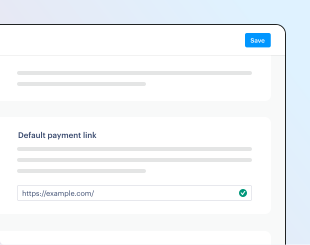
Set your default payment link
Your default payment link is a quick way to open Paddle Checkout for a transaction. It's also used in emails from Paddle that let customers manage purchases that are recurring. You need to set a default payment link before you can launch a checkout.
We'll set our default payment link to the page where we just added Paddle.js:
- Go to Paddle > Checkout > Checkout settings.
- Enter the page where you added Paddle.js under the Default payment link heading.
- Click Save when you're done.
Create a transaction in Paddle
Transactions are the central billing entity in Paddle. They capture and calculate revenue for a customer purchase, and represent what they see when they open a checkout.
We'll create a transaction with details about what our customer is purchasing in our backend, then extract the checkout link to launch a checkout. We can use the transaction ID as a central identifier for this purchase throughout the journey.
Install Paddle
First, add the Paddle SDK to your backend. Paddle has SDKs for Node.js, Python, PHP, and Go.
Install using npm, yarn, or pnpm. For example:
pnpm add @paddle/paddle-node-sdkyarn add @paddle/paddle-node-sdknpm install @paddle/paddle-node-sdkGet an API key
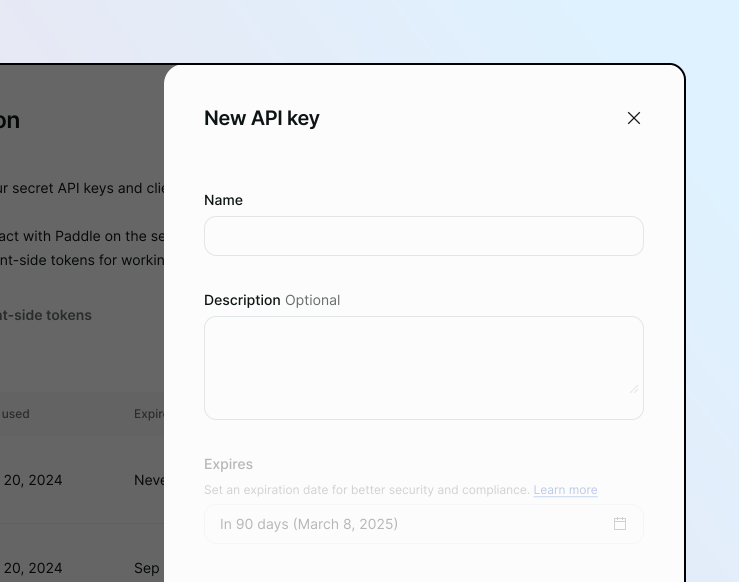
API keys are for authenticating with Paddle in your backend. We need one to create a transaction.
- Go to Paddle > Developer tools > Authentication
- Click New API key
- Give your key a name and description, then set an expiry date.
- Under permissions, check Write for customers and transactions. You can always edit permissions later.
- Click Save when you're done, then copy the API key.
- Store this safely in your credential manager or secret store.
Treat your API key like a password. Keep it safe and never share it with apps or people you don't trust.
Set up the endpoint
You need to set up an endpoint to call from your iOS app to create the transaction in Paddle and return the checkout link.
const express = require('express');const cors = require('cors');const bodyParser = require('body-parser');
// Import Paddle SDKconst { Paddle } = require('@paddle/paddle-node-sdk');
// Express setupconst app = express();const PORT = process.env.PORT || 3000;app.use(cors());app.use(bodyParser.json());app.use(bodyParser.urlencoded({ extended: true }));require('dotenv').config();
// Initialize Paddle// Assumes you have a Paddle API key in the .env fileconst paddle = new Paddle(process.env.PADDLE_API_KEY);
app.post("/paddle/create-transaction", async (req, res) => {  try {  // You will insert code here in the next steps
  } catch (error) {    console.error('Error creating transaction:', error);    return res.status(500).json({ error: error.message });  }});
// Start serverapp.listen(PORT, () => { console.log(`Server is running on port ${PORT}`);});Create a customer
If the user is signed in to your app, create a customer in Paddle for them.
Customers are lightweight entities that hold high-level details, like name and email address. They have related address and business entities.
const express = require('express');const cors = require('cors');const bodyParser = require('body-parser');
// Import Paddle SDKconst { Paddle } = require('@paddle/paddle-node-sdk');
// Express setupconst app = express();const PORT = process.env.PORT || 3000;app.use(cors());app.use(bodyParser.json());app.use(bodyParser.urlencoded({ extended: true }));require('dotenv').config();
// Initialize Paddleconst paddle = new Paddle(process.env.PADDLE_API_KEY);
app.post("/paddle/create-transaction", async (req, res) => {  try {  // 1. Fetch or create a Paddle customer    const { userId } = req.body;
    const existingUser = await User.findOne({ where: { id: userId } });
    if (!existingUser) {      return res.status(404).json({ error: 'User not found' });    }
    // Check if customer already exists in Paddle    if (!existingUser.paddleCustomerId) {      const customer = await paddle.customers.create({        email: existingUser.email,        name: existingUser.name      });
      // Update the user with the Paddle customer ID      await existingUser.update({ paddleCustomerId: customer.id });      existingUser.paddleCustomerId = customer.id;    }  } catch (error) {    console.error('Error creating transaction:', error);    return res.status(500).json({ error: error.message });  }});
// Start serverapp.listen(PORT, () => { console.log(`Server is running on port ${PORT}`);});We recommend storing the Paddle customer ID against your authentication provider, so you can associate the customer with their purchases in Paddle.
Create a transaction and extract the URL
To set up a checkout, create a transaction with:
- The customer ID of this customer.
- The items the customer is purchasing, which include the price ID we set up earlier and a quantity for each.
Once created, extract the checkout.url and return it to your app.
If you've integrated with RevenueCat for order fulfillment, include an object of custom data containing a unique identifier for RevenueCat.
const cors = require('cors');const bodyParser = require('body-parser');
// Import Paddle SDKconst { Paddle } = require('@paddle/paddle-node-sdk');
// Express setupconst app = express();const PORT = process.env.PORT || 3000;app.use(cors());app.use(bodyParser.json());app.use(bodyParser.urlencoded({ extended: true }));require('dotenv').config();
// Initialize Paddleconst paddle = new Paddle(process.env.PADDLE_API_KEY);
app.post("/paddle/create-transaction", async (req, res) => {  try {  // 1. Fetch or create a Paddle customer    const { userId } = req.body;
    const existingUser = await User.findOne({ where: { id: userId } });
    if (!existingUser) {      return res.status(404).json({ error: 'User not found' });    }
    // Check if customer already exists in Paddle    if (!existingUser.paddleCustomerId) {      const customer = await paddle.customers.create({        email: existingUser.email,        name: existingUser.name      });
      // Update the user with the Paddle customer ID      await existingUser.update({ paddleCustomerId: customer.id });      existingUser.paddleCustomerId = customer.id;    }
    // 2. Create the transaction    // (Optional) Grab RevenueCat metadata field ID passed from the iOS app.    // You can use any name to pass through. We use revenuecatId.    const { revenuecatId } = req.body;
    // Grab the items from the request body    // This is an array of objects with a price_id and quantity for each item the customer is purchasing    const { items } = req.body;
    if (!Array.isArray(items) || items.length === 0) {      return res.status(400).json({ error: "Items array is required and can't be empty" });    }
    // Create the transaction    const transaction = await paddle.transactions.create({      customer_id: existingUser.paddleCustomerId,      items: items,      collection_mode: 'automatic', // Default that means checkout is created
      custom_data: {        rc_user_id: revenuecatId // (Optional) If using Revenuecat, pass the metadata field ID.      }    });
    // Return the checkout link to the iOS app    res.json({      checkoutUrl: transaction.checkout.url    });  } catch (error) {    console.error('Error creating transaction:', error);    return res.status(500).json({ error: error.message });  }});
// Start serverapp.listen(PORT, () => { console.log(`Server is running on port ${PORT}`);});Add a checkout button to your app
Now, update your iOS app to add a button that:
- Checks to see if in-app purchases are allowed on the device
- Checks to see if a user already purchased the item.
- Calls your backend endpoint to create a Paddle transaction.
- Opens the checkout link returned by your endpoint in Safari.
Handle fulfillment and provisioning
When a customer completes a purchase, they'll be redirected back to your app. At this point, you need to handle fulfillment and unlock the features they bought.
You can extract the transaction ID from the redirect URL query parameter to match the checkout with the transaction you created earlier and the transaction.completed webhook.
If you use the RevenueCat x Paddle integration to handle entitlements, you're all set!
Here's how it works:
- Paddle automatically sends data to RevenueCat about the completed checkout.
- RevenueCat grants the user an entitlement based on your product configuration.
- Use the RevenueCat SDK to check entitlement status in your iOS app.
You can use webhooks to build your own fulfillment workflow. In this example, we'll grant users access when they've purchased our Lifetime Access product.
Build a webhook handler
When a customer creates or completes a transaction, Paddle can send a webhook to an endpoint you set up. You can store details of the transaction in your database and associate it with the user's account.
Add a new endpoint to the existing server-side code as set up in Set up the endpoint.
app.post("/paddle/webhooks", express.raw({ type: 'application/json' }), async (req, res) => {  try {    // You can verify the webhook signature here    // We don't cover this in the tutorial but it's best practice to do so    // https://developer.paddle.com/webhooks/signature-verification
    const payload = JSON.parse(req.body.toString());    const { data, event_type } = payload;    const occurredAt = payload.occurred_at;
    // Listen for vital events from Paddle    switch (event_type) {      // 1. Record transactions in the database
      // Handle a new transaction      // You can create a Transaction database to store records and associate them to a user      case 'transaction.created':        // Find the user associated with this transaction        const userForTransaction = await User.findOne({ where: { paddleCustomerId: data.customer_id } });
        if (userForTransaction) {          await Transaction.create({            transactionId: data.id,            userId: userForTransaction.id,            subscriptionId: data.subscription_id,            status: data.status,            amount: data.amount,            currencyCode: data.currency_code,            occurredAt: occurredAt          });        }        break;
      // Handle a completed transaction      // If you have a Transaction database, you can update the transaction record      case 'transaction.completed':
        // Find the transaction by its ID        const completedTransaction = await Transaction.findOne({          where: { transactionId: data.id }        });
        if (completedTransaction) {          await completedTransaction.update({            status: data.status,            subscriptionId: data.subscription_id,            invoiceId: data.invoice_id,            invoiceNumber: data.invoice_number,            billedAt: data.billed_at,            updatedAt: data.updated_at          });        }        break;    }
res.json({ received: true }); } catch (error) { console.error('Error processing webhook:', error); return res.status(500).json({ error: error.message }); }});Unlock user access
When you receive the transaction.completed webhook, you can use the details to handle order fulfillment and provisioning.
The example below updates a user's access permissions in your database. After this, your iOS app can check for the lifetimeAccess permission to unlock premium features.
app.post("/paddle/webhooks", express.raw({ type: 'application/json' }), async (req, res) => {  try {    // You can verify the webhook signature here    // We don't cover this in the tutorial but it's best practice to do so    // https://developer.paddle.com/webhooks/signature-verification
    const payload = JSON.parse(req.body.toString());    const { data, event_type } = payload;    const occurredAt = payload.occurred_at;
    // Listen for vital events from Paddle    switch (event_type) {      // 1. Record transactions in the database
      // Handle a new transaction      // You can create a Transaction database to store records and associate them to a user      case 'transaction.created':        // Find the user associated with this transaction        const userForTransaction = await User.findOne({ where: { paddleCustomerId: data.customer_id } });
        if (userForTransaction) {          await Transaction.create({            transactionId: data.id,            userId: userForTransaction.id,            subscriptionId: data.subscription_id,            status: data.status,            amount: data.amount,            currencyCode: data.currency_code,            occurredAt: occurredAt          });        }        break;
      // Handle a completed transaction      // If you have a Transaction database, you can update the transaction record      case 'transaction.completed':
        // Find the transaction by its ID        const completedTransaction = await Transaction.findOne({          where: { transactionId: data.id }        });
        if (completedTransaction) {          await completedTransaction.update({            status: data.status,            subscriptionId: data.subscription_id,            invoiceId: data.invoice_id,            invoiceNumber: data.invoice_number,            billedAt: data.billed_at,            updatedAt: data.updated_at          });
          // 2. Provision access to your app          // Fetch the user associated with this transaction          const user = await User.findOne({ where: { id: completedTransaction.userId } });
          if (user) {            // Fetch the items from the transaction            const purchasedItems = data.items || [];
            // Add what access the user has based on the items they purchased            // For this example, we're using access permissions and storing them in the user model on an accessPermissions field            // We also map the Paddle product IDs to the access permissions            // In a real app, you could use a database table for this mapping
            // Get existing permissions to see if any first            const accessPermissions = user.accessPermissions ? JSON.parse(user.accessPermissions) : {};
            // Map product IDs to access permissions            // We add an additional product as an example of how you can handle multiple            const productToPermission = {              'pro_01h1vjes1y163xfj1rh1tkfb65': 'lifetimeAccess',              'pro_01gsz97mq9pa4fkyy0wqenepkz': 'temporaryAccess'            }
            purchasedItems.forEach(({ price }) => {              const permissionKey = productToPermission[price.product_id];              if (permissionKey) accessPermissions[permissionKey] = true;            });
            // Update the user with their new access permissions            await user.update({              accessPermissions: JSON.stringify(accessPermissions),            });          }        }        break;    }
res.json({ received: true }); } catch (error) { console.error('Error processing webhook:', error); return res.status(500).json({ error: error.message }); }});Create a notification destination
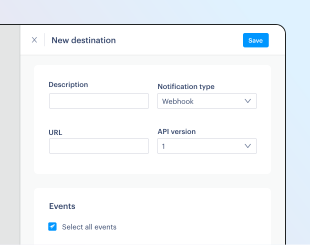
To start receiving webhooks, create a notification destination. This is where you can tell Paddle which events you want to receive and where to deliver them to.
- Go to Paddle > Developer tools > Notifications.
- Click New destination.
- Set Notification type to URL and enter the URL for your webhook handler.
- Choose the
transaction.completedevent. You can always edit events later. - Click Save destination.
Test the complete flow
We're now ready to test the complete purchase flow end-to-end. If you're using a sandbox account, you can take a test payment using our test card details:
- Email address
An email address you own
- Country
Any valid country supported by Paddle
- ZIP code (if required)
Any valid ZIP or postal code
- Card number
4242 4242 4242 4242- Name on card
Any name
- Expiration date
Any valid date in the future.
- Security code
100
Before you go live, extend your Apple Pay integration by verifying your domain for Apple Pay. This lets you launch the Apple Pay modal directly from your checkout.
Next steps
That's it. Now you've built a purchase workflow that links out to Paddle Checkout, you might like to hook into other features of the Paddle platform.
Learn more about Paddle
When you use Paddle, we take care of payments, tax, subscriptions, and metrics with one unified platform. Customers can self-serve with the portal, and Paddle handles any order inquiries for you.
See which payment methods you can offer your customers, including credit cards, PayPal, Apple Pay, more.
Track revenue, subscriptions, and other business metrics natively in Paddle.
Let customers manage their subscriptions, payments, and account details in a self-service portal.
Build a web checkout
Our tutorial creates a transaction, then passes that transaction to Paddle.js. You can also use Paddle.js to build pricing pages and signup flows on the web, then redirect people to your app.
Start here for a complete overview of integrating with Paddle and launching your workflow.
Offer geo-based prices for your products and subscriptions, automatically in checkout.
Listen for events during checkout to enhance the customer experience or trigger actions.
Build advanced subscription functionality
Paddle Billing is designed for subscriptions as well as one-time items. You can use Paddle to build workflows to pause and resume subscriptions, flexibly change billing dates, and offer trials.