Upsell checkout is in early access
This feature is in early access. You can read the docs to learn more, then email us at sellers@paddle.com to join the early access program waitlist. We'll reach out when there's capacity if you meet the program requirements.
An upsell checkout is a specialized purchase flow designed to capture additional sales immediately after a customer completes an initial purchase. It's optimized to minimize friction and maximize conversion rates by reusing details and consent acknowledgments from the preceding transaction.
How it works
You can use upsell checkouts after a customer has completed an initial transaction using Paddle Checkout. You pass the transaction ID of the initial transaction to the upsell checkout.
An upsell checkout uses the customer, business, and address data from the previous transaction, so customers never have to reenter these details and you don't have to manually prefill those details.
You must open an inline, one-page checkout for the upsell flow to show. If you try to open an overlay checkout or multi-step variant, it defaults to a standard inline checkout.
Enable a one-click purchase experience
The checkout flow can be streamlined to render a single button for one-click purchasing. It hides elements that were already presented during the initial transaction, like the Merchant of Record disclosure, and automatically selects the same customer payment method.
This happens when:
- The transaction is within the same session
The customer completed the initial transaction within the last 5 minutes. - The payment methods can be reused
The customer saved their payment method during the initial purchase and they're authenticated, or they selected Apple Pay or Google Pay.
If these don't happen, then the upsell checkout experience presented to customers can vary. Customer data is still reused and the skip button is still shown.
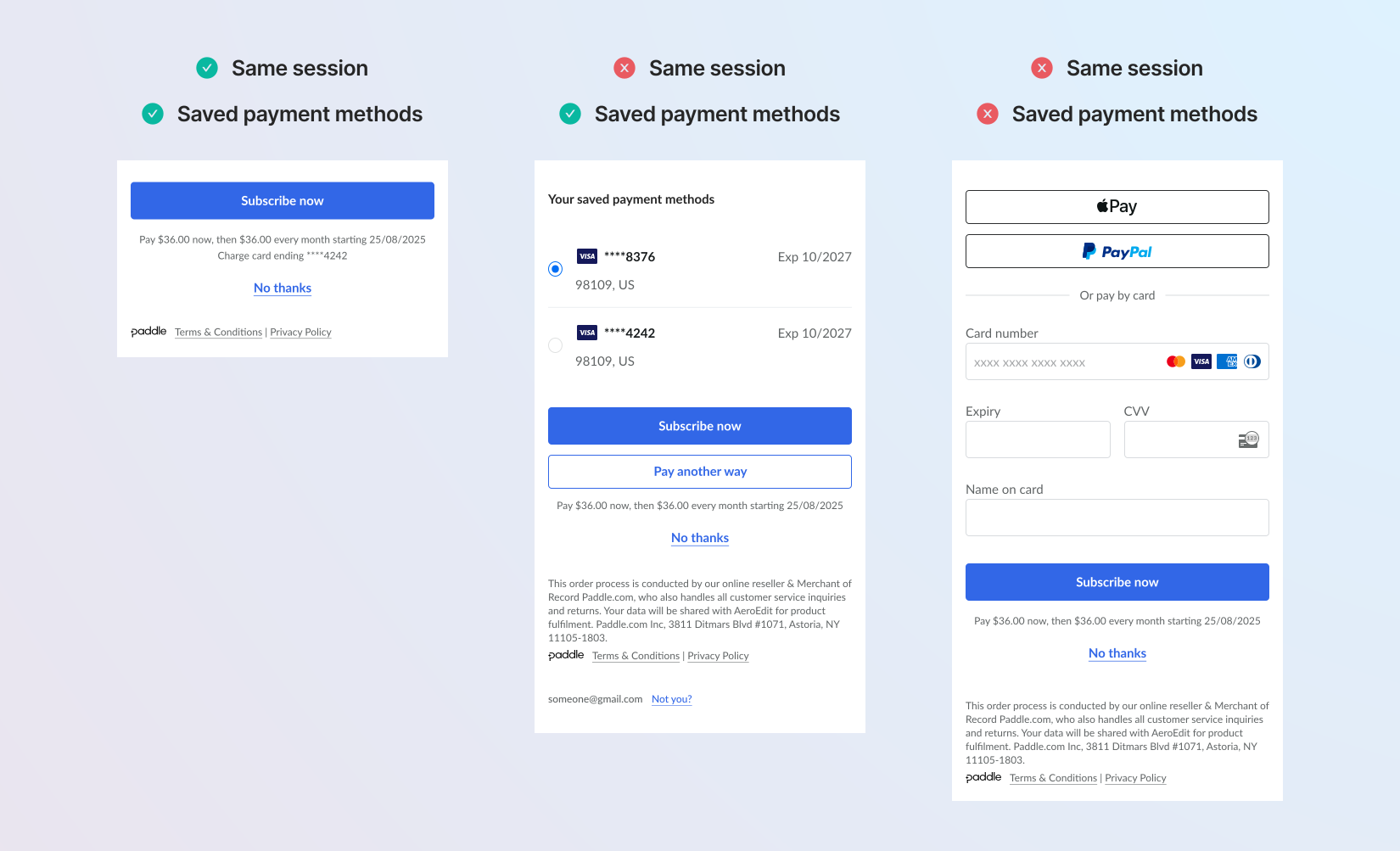
Same session
You can open checkouts for upsells immediately after a transaction completes, or later - for example, from an email campaign or when customers return to your app.
Paddle determines whether an upsell occurs within the "same session" by checking if the original transaction was completed within the last 5 minutes.
If so, the checkout flow is streamlined to hide elements that were already presented during the initial purchase, like the Merchant of Record disclosure. If not, those elements are shown.
When a checkout is opened for an upsell, the session remains fixed. This means the flow won't change for customers during purchase and upsell transactions still process successfully after the 5 minute window has passed.
Reusing payment methods
When the upsell occurs within the same session and payment methods are reusable, customers can complete their purchase with one click.
There's two approaches to enable payment method reuse, depending on the payment method used in the initial transaction:
- Saved payment methods
When you turn on the option to let customers save their payment methods, they can opt to save their card or PayPal account during checkout. The saved payment method is automatically selected for one-click purchasing if the customer is authenticated with a customer authentication token. - Wallet payment methods
When a customer uses Apple Pay or Google Pay in the initial transaction, you can pass that same method when opening the upsell checkout withinallowedPaymentMethods. This restricts the checkout to that specific payment method, enabling one-click purchasing without requiring a customer authentication token.
For card and PayPal payment methods, customers must opt to save. If consent wasn't given during the initial purchase, customers must reenter their payment details for the upsell.
Customize the upsell flow
You can pass settings to Paddle.js to configure the upsell experience.
By default, the checkout shows a "No thanks" button so customers can decline the upsell. If they decline, you must handle what happens depending on your purchase flow.
To hide the skip button, pass upsell.settings.showSkipButton: false. Do this when customers can navigate away from the checkout themselves, and you don't want to handle what happens next.
Paddle Checkout takes no action when the skip button is clicked. Hide the button or listen for the checkout.upsell.canceled event to take action yourself.
Checkout events
Checkout events include an upsell object when the checkout is opened as an upsell flow.
The object contains the original transaction ID and a sameSession boolean. If true, the upsell occurred within the same session as the previous transaction.
Paddle.js emits a checkout.loaded event when the checkout is opened. You can use this to track whether an upsell flow was shown to a customer by reading event.data.upsell. If sameSession is true, the streamlined upsell flow was shown.
If the checkout isn't for an upsell, or you attempted to open a checkout for an upsell but an upsell-specific flow wasn't shown to the customer, the value of upsell is null. This can happen because:
- The previous transaction isn't
completed. - You attempt to open an overlay or multi-step checkout for an upsell.
Before you begin
Set up an initial checkout
Upsells are intended to follow directly after a previously completed transaction at checkout. To open a new checkout for an upsell, you need to have a previous transaction that's completed.
Build an inline or overlay checkout to let customers purchase initially. This lets you capture the ID of that transaction and pass it to open a checkout for the upsell later.
While the initial checkout can use an overlay checkout, upsells must use inline checkouts. It's recommended to use an inline checkout throughout for ease of implementation.
Create products and prices to upsell
You'll need to create any new products and at least one related price to pass as items to upsell at checkout.
Turn on saved payment methods
For the best upsell experience where customers can purchase in one-click by reusing their previous payment method, you should turn on saved payment methods.
Without this, customers can only use wallet payment methods like Apple Pay or Google Pay for one-click purchasing, or would need to enter their payment details again for the upsell transaction.
Open a checkout for an upsell
Open a checkout for an upsell in four steps:
- Grab the previous transaction ID
Handle checkout completed events for the previous transaction. - Capture the payment method type Optional
Capture the payment method type if the customer used Apple Pay or Google Pay. - Verify the transaction is completed Optional
Confirm that the transaction iscompletedbefore opening the upsell flow. - Open the checkout with Paddle.js
Passupsellto Paddle.js with the previous transaction ID, along with the items to upsell and any other settings to customize the flow.
Grab the previous transaction ID
Upsell checkouts require a customer to have completed a previous transaction through checkout. You'll need to provide the transaction ID for that previous transaction when opening the new checkout.
Since upsell checkouts are intended to be opened as soon as possible after a customer has completed their purchase, we recommend grabbing the transaction ID on the client-side using Paddle.js.
When initializing Paddle.js, you can pass eventCallback as a configuration option to run a function when a specific event occurs. Extract the transaction ID from the checkout.completed event when a customer completes checkout.
Import Paddle.js events if using TypeScript, then update where you initialize Paddle.js to include an eventCallback function:
import { initializePaddle } from '@paddle/paddle-js';import { CheckoutEventNames, PaddleEventData } from '@paddle/paddle-js';
// Variable to store the transaction ID for the upselllet previousTransactionId: string | null = null;
const paddle = await initializePaddle({  token: 'CLIENT_SIDE_TOKEN',  eventCallback: (event: PaddleEventData) => {    if (event.name === CheckoutEventNames.CHECKOUT_COMPLETED) {      // Grab the transaction ID from the completed checkout      previousTransactionId = event.data.transaction_id;    }  }});
Update where you initialize Paddle.js to include an eventCallback function:
<script src="https://cdn.paddle.com/paddle/v2/paddle.js"></script><script type="text/javascript">  // Variable to store the transaction ID for the upsell  var previousTransactionId = null;
  Paddle.Initialize({    token: "CLIENT_SIDE_TOKEN",    eventCallback: function(event) {      if (event.name === 'checkout.completed') {        // Grab the transaction ID from the completed checkout        previousTransactionId = event.data.transaction_id;      }    }  });</script>
Capture the payment method type Optional
If the customer might use Apple Pay or Google Pay in the initial transaction, you should capture the payment method type alongside the transaction ID. This lets you present the one-click payment experience when opening the upsell checkout by passing the wallet method to allowedPaymentMethods.
Extract the payment method type from the checkout.completed event by reading event.data.payment.method_details.type. Look for whether it's apple-pay or google-pay.
Update your eventCallback function to also capture the payment method type:
import { initializePaddle } from '@paddle/paddle-js';import { CheckoutEventNames, PaddleEventData } from '@paddle/paddle-js';
// Variables to store data for the upselllet previousTransactionId: string | null = null;let paymentMethodType: string | null = null;
const paddle = await initializePaddle({  token: 'CLIENT_SIDE_TOKEN',  eventCallback: (event: PaddleEventData) => {    if (event.name === CheckoutEventNames.CHECKOUT_COMPLETED) {      // Grab the transaction ID and payment method type      previousTransactionId = event.data.transaction_id;      const methodType = event.data.payment?.method_details?.type;      if (methodType === 'apple-pay' || methodType === 'google-pay') {        paymentMethodType = methodType;      }    }  }});
Update your eventCallback function to also capture the payment method type:
<script src="https://cdn.paddle.com/paddle/v2/paddle.js"></script><script type="text/javascript">  // Variables to store data for the upsell  var previousTransactionId = null;  var paymentMethodType = null;
  Paddle.Initialize({    token: "CLIENT_SIDE_TOKEN",    eventCallback: function(event) {      if (event.name === 'checkout.completed') {        // Grab the transaction ID and payment method type        previousTransactionId = event.data.transaction_id;        var methodType = event.data.payment && event.data.payment.method_details && event.data.payment.method_details.type;        if (methodType === 'apple-pay' || methodType === 'google-pay') {          paymentMethodType = methodType;        }      }    }  });</script>
Verify the transaction is completed Optional
When a checkout completes, the related transaction moves to paid while completed transaction processing takes place, then completed. This typically takes less than a second.
For most use cases, you can open the upsell checkout immediately after receiving the checkout.completed event. If the transaction isn't in a completed state yet, customers see the standard checkout flow instead.
If you want to ensure the streamlined upsell flow is shown, you have two options:
- Make a single API verification call
Fetch the transaction through the Paddle API and verify thestatusfield iscompletedbefore opening the upsell checkout. - Using webhook data (if you store transactions)
If you already listen fortransaction.completedortransaction.updatedwebhooks to handle fulfillment, you can check your stored transaction data to verify completion status.
Don't continuously poll the Paddle API to check transaction status. Make at most one verification call, then proceed with opening the checkout regardless of the result.
Open the checkout with Paddle.js
You use the Paddle.js Paddle.Checkout.open() method to open a checkout for an upsell. You can build an inline checkout with all usual checkout settings.
The checkout must be inline and one-page. Pass displayMode with the value inline, and variant with the value one-page as a checkout setting.
Pass either the items you want to upsell to the checkout, or the transaction ID of an existing transaction that contains the items you want to upsell. You may also want to create and apply a discount to the upsell to incentivize the customer to purchase the additional items.
The upsell object tells Paddle.js that this is a checkout for an upsell. You must pass this to the Paddle.Checkout.open() method.
Provide the previous transaction ID
Take the previousTransactionId variable you stored from the checkout.completed event and pass it as upsell.transactionId.
There's no need to pass customer, address, or business details because they're automatically inherited from the previous transaction. If you do choose to pass a customer_id, the customer against the previous transaction must match.
allowLogout is ignored if passed and defaults to false because the upsell is tied to a previous transaction and customer.
Customize the upsell flow
By default, the checkout for upsells shows a "No thanks" skip button. Once clicked, the checkout emits a checkout.upsell.canceled event.
You can hide this by passing upsell.settings.showSkipButton: false. This prevents the upsell from being canceled and the checkout from being closed.
Present saved payment methods
To render the one-click purchase experience or show previous saved payment methods when customers use card or PayPal, you must:
- Turn on saved payment methods
- Authenticate customers with a customer authentication token.
Generate a customer authentication token using the Paddle API and pass it to the checkout as customerAuthToken.
If customers can't complete their purchase in one click, check that the customer has payment methods saved and the checkout is in the same session using upsell.sameSession in checkout events.
Present wallet payment methods
To render the one-click purchase experience when customers use Apple Pay or Google Pay, you must pass that specific wallet method to allowedPaymentMethods.
If you captured the payment method type from the initial checkout, you can pass it directly to allowedPaymentMethods as the only value in the array.
Examples
This example shows opening an upsell checkout when the customer used card or PayPal in the initial transaction. The customer authentication token enables access to their saved payment method for one-click purchasing.
var upsellItems = [  {    priceId: 'pri_01h1vjfevh5etwq3rb176h9d9w',    quantity: 1  }];
// previousTransactionId was captured from the initial checkout.completed eventPaddle.Checkout.open({ items: upsellItems, customerAuthToken: 'pca_01hwz42rfyaxw721bgkppp66gx_01h282ye3v2d9cmcm8dzpawrd0_otkqbvati3ryh2f6o7zdr6owjsdhkgmm', settings: { displayMode: "inline", frameTarget: "checkout-container", frameInitialHeight: "450", frameStyle: "width: 100%; min-width: 312px; background-color: transparent; border: none;", }, upsell: { transactionId: previousTransactionId, settings: { showSkipButton: false } }});This example shows opening an upsell checkout when the customer used Apple Pay or Google Pay in the initial transaction. The allowedPaymentMethods array is set to the wallet method used in the initial checkout.
var upsellItems = [  {    priceId: 'pri_01h1vjfevh5etwq3rb176h9d9w',    quantity: 1  }];
// paymentMethodType and previousTransactionId were captured from the initial checkout.completed eventPaddle.Checkout.open({  items: upsellItems,  settings: {    displayMode: "inline",    frameTarget: "checkout-container",    frameInitialHeight: "450",    frameStyle: "width: 100%; min-width: 312px; background-color: transparent; border: none;",    allowedPaymentMethods: [paymentMethodType]  },  upsell: {    transactionId: previousTransactionId,    settings: {      showSkipButton: false    }  }});
Handle skipped and canceled upsells
By default, checkouts for upsells display a "No thanks" skip button. When a customer clicks the "No thanks" button, Paddle.js emits a checkout.upsell.canceled event but doesn't perform any action.
You need to decide what happens next so customers continue their journey.
If you don't want checkouts to display the skip button, pass upsell.settings.showSkipButton: false.
Common actions include redirecting customers to a different page, closing the checkout, or closing and opening a new checkout with an improved upsell offer.
When initializing Paddle.js, you can pass eventCallback as a configuration option to run a function when a specific event occurs. This can be used to handle when the checkout.upsell.canceled event is emitted.
This example redirects customers to a dashboard page when they skip the upsell.
Import Paddle.js events if using TypeScript, then update where you initialize Paddle.js to include an eventCallback function:
import { initializePaddle } from '@paddle/paddle-js';import { CheckoutEventNames, PaddleEventData } from '@paddle/paddle-js';
const paddle = await initializePaddle({  token: 'CLIENT_SIDE_TOKEN',  eventCallback: (event: PaddleEventData) => {    if (event.name === CheckoutEventNames.CHECKOUT_UPSELL_CANCELED) {
      setTimeout(() => {        window.location.href = `https://app.aeroedit.com/settings?upsellSkipped=true`;      }, 3000);    }  }});
Update where you initialize Paddle.js to include an eventCallback function:
<script src="https://cdn.paddle.com/paddle/v2/paddle.js"></script><script type="text/javascript"> Paddle.Initialize({ token: "CLIENT_SIDE_TOKEN", eventCallback: function(event) { if (event.name === 'checkout.upsell.canceled') { setTimeout(function() { window.location.href = 'https://app.aeroedit.com/settings?upsellSkipped=true'; }, 3000); } } });</script>If you close the checkout using Paddle.Checkout.close(), be aware that the checkout iframe is removed from the DOM. Consider updating your UI at the same time, so customers don't see an empty space where the checkout was.